
   |

Titanic History Monday, September 21, 2026 |
| 1875 - 1st class passenger Miss Edith Corse Evans was born.
1861 - 1st class survivor Mrs Eleanor Widener was born to the Elkins family in Philadelphia, Pennsylvania, USA. 1876 - 1st class survivor Mrs Mary Aline Holverson was born to Dr. Harry Luther Towner and Ella Newall Towner in Bradford, Pennsylvania, USA. 1865 - 1st class survivor Mrs Sallie Beckwith was born to the Monypeny family in Columbus, Ohio, USA. 1906 - 3rd class survivor Miss Marie Catherine Baclini was born to Solomon Baclini and Latifa Qurban Baclini. 1872 - Chief Officer Mr Henry Tingle Wilde was born in Liverpool, Merseyside, England, UK. |
| Shop at Cafepress |
 |
 |
 |
| more Titanic designs |

Transparent GIFs
|
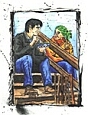
How do you get a graphic to be anything but a square? What if you wanted an oval where you could still see the background around it? This is done by making transparent GIFs, which are not difficult with Photoshop 5, but it's a somewhat hidden feature.
The JPG format doesn't support transparencies, so you will have to use GIF, which will limit your selection of colors. Don't worry, though, it won't be drastic.
Notice that I didn't use feathering on the oval selection. Using feathering with transparent GIFs can make the edge around your image look strange. There is no partial transparency. It's either transparent or it's solid. So if you have an image with a lot of feathering it will just make the partial pixels solid. Sometimes it can still be hidden, and Photoshop 5.5 deals with this slightly better, but this is the limit of transparent GIFs. Next time, at long last, I'll be teaching you the magical shortcuts in making seamless frames. |


Making Waves
history with kelly
copal's queue
site of the month
the flub report
wallpapers/quotes
graphic sets
characters
scenes
downloads
rare pictures
facts
books
columns
Copal's Queue
introduction
thumbnails
seamless bg
frames
webrings
yahoo
graphics pop
graphics pop ii
loading
diamond bg
striped bg
text
transparent gifs
seamless frames
guides
transforming
mouseovers
tables
cleaning up
flyout window
image maps
programs i love
actions
cropping
for your website

about back-to-titanic.com | contact us